Java + TestNG + Allure Reporting: Complete Setup Guide (2026)
A green bar in CI tells you that something failed. It rarely tells you where in the flow it broke, what the screen looked like, or which story failed.
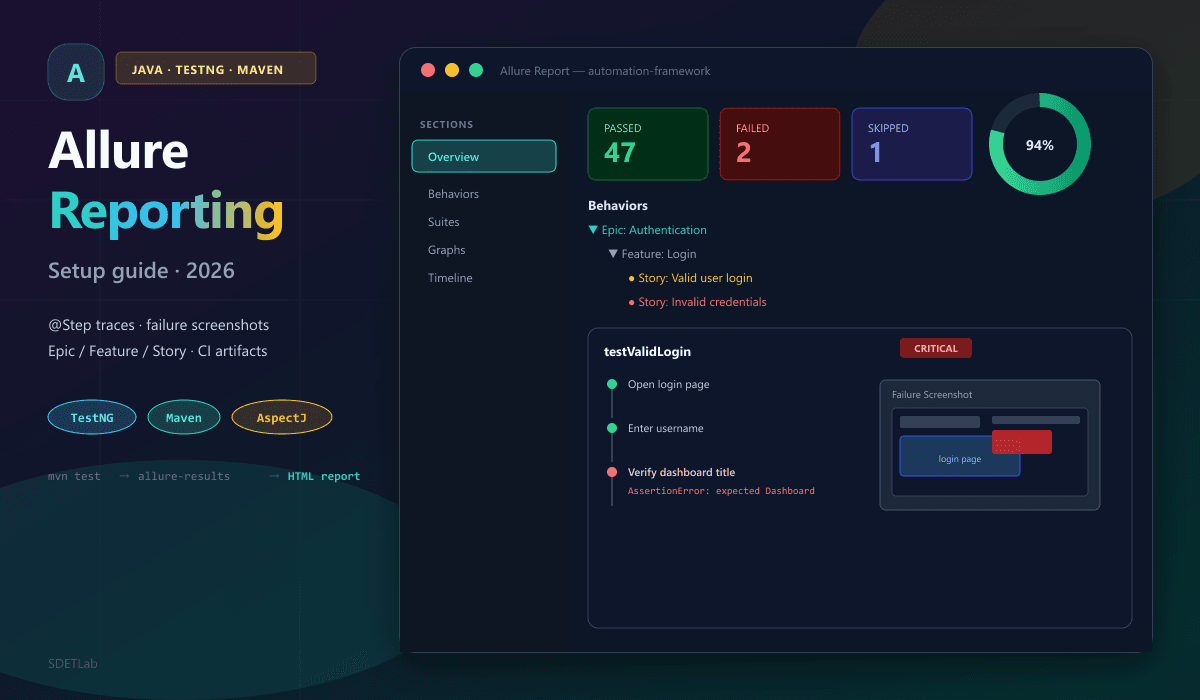
Allure Report fixes that gap. With Java, TestNG, and a small Maven setup, you get HTML reports with steps, labels (Epic / Feature / Story), screenshots on failure, and links to Jira or GitHub issues. Stakeholders can read the report without opening your IDE.
This guide walks through install, project layout, Maven config (including AspectJ for @Step), your first test, attachments, running and viewing reports, CI hooks, and common fixes.
For UI structure that pairs well with Selenium tests, see Page Object Model 2026: Best Practices. For API tests in the same stack, see REST Assured Complete Tutorial (Java). For flaky UI tests, see Fix Flaky Tests: 2026 Masterclass. For GitHub Actions patterns, see GitHub Actions + Playwright CI/CD pipeline.
Prerequisites
- JDK 17 (or your team’s LTS version).
- Maven 3.8+ (or Gradle—this guide uses Maven).
- TestNG as the test runner.
- Allure command-line for local HTML reports.
Install Allure CLI (pick one):
# macOS (Homebrew)
brew install allure

# Windows (Scoop)
scoop install allure

# Verify
allure --version
Official docs: Allure Report · allure-testng.
What is Allure?
Allure reads result files (JSON) written during test runs and builds an interactive HTML report. You add:
- Metadata —
@Epic,@Feature,@Story,@Severity,@Owner - Steps —
Allure.step(...)or@Stepon helper methods - Attachments — screenshots, logs, JSON (often on failure)
TestNG (or JUnit) still runs the tests. Allure enriches what gets saved under target/allure-results/.
Recommended project layout
Keep production code, tests, and resources separate:
automation-framework/
├── pom.xml
├── testng.xml
├── src/
│   ├── main/java/          # app helpers (if any)
│   └── test/
│       ├── java/
│       │   └── com/yourcompany/
│       │       ├── pages/       # Page objects
│       │       ├── tests/       # TestNG classes
│       │       ├── listeners/   # Screenshot listener
│       │       └── utils/
│       └── resources/
│           ├── allure.properties
│           └── testdata/
└── target/
    └── allure-results/     # generated after mvn test
This layout keeps pages, tests, listeners, and config easy to find as the suite grows.
Maven and Allure setup
Follow these steps in order: create the project, add dependencies, wire AspectJ for @Step, then add allure.properties.
Step 1 — Create a Maven project
New project from the command line:
mvn archetype:generate \
  -DgroupId=com.yourcompany \
  -DartifactId=automation-framework \
  -DarchetypeArtifactId=maven-archetype-quickstart \
  -DinteractiveMode=false
Or create the same structure in your IDE and add a pom.xml.
Step 2 — Add Allure and TestNG dependencies
Use the Allure BOM so all Allure jars share one version:
<properties>
    <project.build.sourceEncoding>UTF-8</project.build.sourceEncoding>
    <maven.compiler.source>17</maven.compiler.source>
    <maven.compiler.target>17</maven.compiler.target>
    <allure.version>2.24.0</allure.version>
    <aspectj.version>1.9.20.1</aspectj.version>
    <testng.version>7.8.0</testng.version>
    <selenium.version>4.18.0</selenium.version>
</properties>

<dependencyManagement>
    <dependencies>
        <dependency>
            <groupId>io.qameta.allure</groupId>
            <artifactId>allure-bom</artifactId>
            <version>${allure.version}</version>
            <type>pom</type>
            <scope>import</scope>
        </dependency>
    </dependencies>
</dependencyManagement>

<dependencies>
    <dependency>
        <groupId>io.qameta.allure</groupId>
        <artifactId>allure-testng</artifactId>
        <scope>test</scope>
    </dependency>
    <dependency>
        <groupId>org.testng</groupId>
        <artifactId>testng</artifactId>
        <version>${testng.version}</version>
        <scope>test</scope>
    </dependency>
    <dependency>
        <groupId>org.seleniumhq.selenium</groupId>
        <artifactId>selenium-java</artifactId>
        <version>${selenium.version}</version>
    </dependency>
</dependencies>
Version note. Check Maven Central: allure-bom for the latest patch before you lock versions in production.
Step 3 — Configure Surefire and AspectJ
@Step and @Attachment need AspectJ weaving. Add this to pom.xml:
<build>
    <plugins>
        <plugin>
            <groupId>org.apache.maven.plugins</groupId>
            <artifactId>maven-surefire-plugin</artifactId>
            <version>3.1.2</version>
            <configuration>
                <argLine>
                    -javaagent:"${settings.localRepository}/org/aspectj/aspectjweaver/${aspectj.version}/aspectjweaver-${aspectj.version}.jar"
                </argLine>
                <systemPropertyVariables>
                    <allure.results.directory>${project.build.directory}/allure-results</allure.results.directory>
                </systemPropertyVariables>
            </configuration>
            <dependencies>
                <dependency>
                    <groupId>org.aspectj</groupId>
                    <artifactId>aspectjweaver</artifactId>
                    <version>${aspectj.version}</version>
                </dependency>
            </dependencies>
        </plugin>
        <plugin>
            <groupId>io.qameta.allure</groupId>
            <artifactId>allure-maven</artifactId>
            <version>2.12.0</version>
            <configuration>
                <reportVersion>${allure.version}</reportVersion>
            </configuration>
        </plugin>
    </plugins>
</build>
Without the AspectJ agent, @Step methods often run but do not appear in the report. That is the most common setup mistake.
Step 4 — Create allure.properties
Create src/test/resources/allure.properties:
allure.results.directory=target/allure-results
allure.link.issue.pattern=https://github.com/yourcompany/automation/issues/{}
allure.link.tms.pattern=https://jira.yourcompany.com/browse/{}
Replace URLs with your real issue tracker and test management tool. { } is where Allure puts the id from @Issue and @TmsLink.
Your first Allure-enabled test
Add a TestNG class with metadata annotations and Allure.step(...) calls:
package com.yourcompany.tests;

import io.qameta.allure.*;
import org.openqa.selenium.By;
import org.openqa.selenium.WebDriver;
import org.openqa.selenium.chrome.ChromeDriver;
import org.testng.Assert;
import org.testng.annotations.*;

public class LoginTests {

    private WebDriver driver;

    @BeforeClass
    @Description("Start browser once for this class")
    public void setUp() {
        driver = new ChromeDriver();
        driver.manage().window().maximize();
    }

    @Test(priority = 1)
    @Severity(SeverityLevel.CRITICAL)
    @Epic("Authentication")
    @Feature("Login")
    @Story("Valid user login")
    @Description("Valid credentials open the dashboard")
    @Issue("AUTH-123")
    @TmsLink("TEST-456")
    public void testValidLogin() {
        Allure.step("Open login page");
        driver.get("https://example.com/login");

        Allure.step("Enter username");
        driver.findElement(By.id("username")).sendKeys("testuser");

        Allure.step("Enter password");
        driver.findElement(By.id("password")).sendKeys("SecurePass123");

        Allure.step("Click login");
        driver.findElement(By.id("login-btn")).click();

        Allure.step("Check dashboard title");
        Assert.assertEquals(driver.getTitle(), "Dashboard - Example App");
    }

    @Test(priority = 2)
    @Severity(SeverityLevel.BLOCKER)
    @Epic("Authentication")
    @Feature("Login")
    @Story("Invalid credentials")
    @Description("Wrong password shows an error message")
    public void testInvalidLogin() {
        driver.get("https://example.com/login");
        driver.findElement(By.id("username")).sendKeys("wronguser");
        driver.findElement(By.id("password")).sendKeys("wrongpass");
        driver.findElement(By.id("login-btn")).click();

        String error = driver.findElement(By.className("error")).getText();
        Assert.assertEquals(error, "Invalid credentials. Please try again.");
    }

    @AfterClass
    public void tearDown() {
        if (driver != null) {
            driver.quit();
        }
    }
}
Annotation cheat sheet
| Annotation | What it does |
|---|---|
@Description | Plain-language summary of the test |
@Severity | BLOCKER, CRITICAL, NORMAL, MINOR, TRIVIAL |
@Epic | Large product area |
@Feature | Feature under test |
@Story | User story or scenario |
@Owner | Who owns the test |
@Issue | Bug tracker link (uses pattern in properties) |
@TmsLink | Test case link in TMS |
@Step | Named sub-steps in helper methods |
Steps and attachments in reports
Use named steps and file attachments so failures are easy to read in the HTML report.
Using @Step on helper methods
Put reusable flows in a helper class:
public class LoginHelper {

    @Step("Open {url}")
    public void navigateTo(String url, WebDriver driver) {
        driver.get(url);
    }

    @Step("Type username {username}")
    public void enterUsername(String username, WebDriver driver) {
        driver.findElement(By.id("username")).sendKeys(username);
    }

    @Step("Type password")
    public void enterPassword(String password, WebDriver driver) {
        driver.findElement(By.id("password")).sendKeys(password);
    }

    @Step("Click login")
    public void clickLogin(WebDriver driver) {
        driver.findElement(By.id("login-btn")).click();
    }

    @Step("Expect title {expectedTitle}")
    public void verifyTitle(String expectedTitle, WebDriver driver) {
        Assert.assertEquals(driver.getTitle(), expectedTitle);
    }
}
Test usage:
@Test
@Description("Login via @Step helper")
public void testLoginWithSteps() {
    LoginHelper helper = new LoginHelper();
    helper.navigateTo("https://example.com/login", driver);
    helper.enterUsername("testuser", driver);
    helper.enterPassword("SecurePass123", driver);
    helper.clickLogin(driver);
    helper.verifyTitle("Dashboard", driver);
}
The report shows each step in a tree. When a step fails, you see exactly which action broke.
Lambda steps (inline)
For quick flows without a helper class:
@Test
public void testWithLambdaSteps() {
    Allure.step("Login flow", () -> {
        Allure.step("Open page", () -> driver.get("https://example.com/login"));
        Allure.step("Fill form", () -> {
            driver.findElement(By.id("username")).sendKeys("testuser");
            driver.findElement(By.id("password")).sendKeys("pass123");
        });
        Allure.step("Submit", () -> driver.findElement(By.id("login-btn")).click());
    });
}
Screenshots and attachments on failure
Attachment helpers
import io.qameta.allure.Attachment;
import org.openqa.selenium.OutputType;
import org.openqa.selenium.TakesScreenshot;
import org.openqa.selenium.WebDriver;

public class AttachmentHelper {

    @Attachment(value = "Screenshot", type = "image/png")
    public byte[] attachScreenshot(WebDriver driver) {
        if (driver instanceof TakesScreenshot) {
            return ((TakesScreenshot) driver).getScreenshotAs(OutputType.BYTES);
        }
        return new byte[0];
    }

    @Attachment(value = "Log", type = "text/plain")
    public String attachLog(String message) {
        return message;
    }
}
TestNG listener (recommended)
Attach screenshots only when a test fails to keep reports small:
package com.yourcompany.listeners;

import io.qameta.allure.Attachment;
import org.openqa.selenium.OutputType;
import org.openqa.selenium.TakesScreenshot;
import org.openqa.selenium.WebDriver;
import org.testng.ITestListener;
import org.testng.ITestResult;

public class AllureTestListener implements ITestListener {

    @Attachment(value = "Failure screenshot", type = "image/png")
    public byte[] saveScreenshot(byte[] screenshot) {
        return screenshot;
    }

    @Attachment(value = "Failure log: {0}", type = "text/plain")
    public String saveLog(String testName) {
        return testName;
    }

    @Override
    public void onTestFailure(ITestResult result) {
        String name = result.getMethod().getMethodName();
        WebDriver driver = WebDriverManager.getDriver(); // your thread-safe holder

        if (driver instanceof TakesScreenshot) {
            byte[] png = ((TakesScreenshot) driver).getScreenshotAs(OutputType.BYTES);
            saveScreenshot(png);
        }
        saveLog(name + " failed: " + result.getThrowable());
    }
}
Register in testng.xml:
<?xml version="1.0" encoding="UTF-8"?>
<!DOCTYPE suite SYSTEM "https://testng.org/testng-1.0.dtd">
<suite name="Automation Suite">
    <listeners>
        <listener class-name="com.yourcompany.listeners.AllureTestListener"/>
    </listeners>
    <test name="Login Tests">
        <classes>
            <class name="com.yourcompany.tests.LoginTests"/>
        </classes>
    </test>
</suite>
Wire WebDriverManager (or your fixture) so the listener can reach the active driver for that test thread.
Run tests and open the report
mvn clean testOr a specific suite:
mvn clean test -DsuiteXmlFile=testng.xmlResults land in target/allure-results/.
View in the browser:
allure serve target/allure-resultsSave a static report:
allure generate target/allure-results --clean -o allure-report
allure open allure-report
Maven plugin:
mvn allure:reportDefault output: target/site/allure-maven.
What you see in the Allure UI
- Overview — pass / fail / skip counts, trends, flaky hints.
- Behaviors — tests grouped by Epic → Feature → Story.
- Suites — structure from
testng.xmland packages. - Categories — product defects vs infrastructure errors (customizable).
- Graphs — timeline, severity, history.
- Test case detail — steps, attachments, stack traces, links.
Advanced features
Once the basics work, these four options make reports clearer for data-heavy tests, easier to reproduce, and better for spotting unstable tests. You do not need all of them on day one—add them as your suite grows.
Parameterized tests
What it does: TestNG runs the same test method many times with different input rows from a @DataProvider (for example: valid user, invalid user, admin). Allure records each row as a separate line in the report and can show the parameters you passed in (such as username).
Why you need it: Without this, one failing data row looks like “the whole test failed,” and you cannot tell which credential set broke. Parameterized runs plus Allure.parameter(...) make the report show which row failed and what values were used—important for login matrices, role-based access, and boundary values.
@Test(dataProvider = "loginCredentials")
@Epic("Authentication")
@Feature("Login")
public void testLoginVariants(String username, String password, boolean shouldPass) {
    Allure.parameter("Username", username);
    Allure.parameter("Password", "***"); // mask secrets in the report

    driver.get("https://example.com/login");
    driver.findElement(By.id("username")).sendKeys(username);
    driver.findElement(By.id("password")).sendKeys(password);
    driver.findElement(By.id("login-btn")).click();

    if (shouldPass) {
        Assert.assertEquals(driver.getTitle(), "Dashboard");
    } else {
        Assert.assertTrue(driver.findElement(By.className("error")).isDisplayed());
    }
}

@DataProvider
public Object[][] loginCredentials() {
    return new Object[][] {
        {"testuser", "SecurePass123", true},
        {"wronguser", "wrongpass", false}
    };
}
In the Behaviors and Suites views you will see one entry per data row, each with its own pass/fail status.
Environment file
What it does: A small environment.properties file is saved next to your Allure results. It lists facts about the run: browser version, OS, Java version, app build, QA vs staging, and so on. Allure shows these on the report Overview page.
Why you need it: A test that passes on your laptop and fails in CI is often an environment problem, not a product bug. When the report says “Chrome 120 on Ubuntu, app 2.5.0, QA,” anyone can match that stack when they debug. You avoid long Slack threads asking “which browser was that?”
Add target/allure-results/environment.properties before or after the run:
Browser=Chrome 120
OS=Windows 11
Java Version=17
App Version=2.5.0
Environment=QA
In CI, generate this file in a @BeforeSuite hook or a pipeline step so every build records the same fields.
Retries and flaky tracking
What it does: TestNG can re-run a failed test a set number of times (IRetryAnalyzer). Allure keeps each attempt in the history so you see pass on retry vs fail on every try.
Why you need it: Some tests fail only sometimes (timing, shared data, network). Retries alone do not fix the root cause—but visible retry history in Allure helps you label a test as flaky and prioritize a real fix. Use retries sparingly in CI; pair them with investigation (see Fix Flaky Tests: 2026 Masterclass).
public class RetryAnalyzer implements IRetryAnalyzer {
    private int count = 0;
    private static final int MAX = 2;

    @Override
    public boolean retry(ITestResult result) {
        if (count < MAX) {
            count++;
            return true;
        }
        return false;
    }
}

@Test(retryAnalyzer = RetryAnalyzer.class)
public void testSometimesFlaky() {
    // ...
}
Check the Graphs and history sections when the same test flips between pass and fail across runs.
Dynamic labels at runtime
What it does: Instead of only static annotations on the method (@Epic, @Owner, …), you set metadata during the test with the Allure API: description, labels, links, epic/feature names.
Why you need it: Static annotations are fine when every run is the same. You need dynamic labels when runtime decides the metadata—for example: which tenant was created, which feature flag was on, or which bug id was filed mid-run. That keeps the report accurate for shared tests, A/B flows, or data-driven epics without duplicating test classes.
@Test
public void testDynamicMetadata() {
    Allure.description("Metadata set during the run");
    Allure.label("owner", "qa-team");
    Allure.label("tenant", "acme-corp");
    Allure.link("Issue", "https://github.com/yourcompany/repo/issues/99");
    Allure.epic("Authentication");
    Allure.feature("SSO Login");
    // test logic
}
Use this when annotations on the method would be wrong or incomplete for half of your data sets.
CI/CD integration
GitHub Actions
name: Test Automation

on: [push, pull_request]

jobs:
  test:
    runs-on: ubuntu-latest
    steps:
      - uses: actions/checkout@v4

      - name: Set up JDK 17
        uses: actions/setup-java@v4
        with:
          java-version: "17"
          distribution: "temurin"

      - name: Install Allure CLI
        run: |
          sudo apt-get update
          sudo apt-get install -y wget unzip
          wget -q https://github.com/allure-framework/allure2/releases/download/2.24.0/allure-2.24.0.tgz
          sudo tar -xzf allure-2.24.0.tgz -C /opt/
          sudo ln -sf /opt/allure-2.24.0/bin/allure /usr/local/bin/allure

      - name: Run tests
        run: mvn -B clean test

      - name: Generate Allure report
        if: always()
        run: allure generate target/allure-results --clean -o allure-report

      - name: Upload report
        if: always()
        uses: actions/upload-artifact@v4
        with:
          name: allure-report
          path: allure-report
Use if: always() so you still get a report when tests fail (same idea as Playwright artifacts in GitHub Actions + Playwright).
Jenkins
Install the Allure Jenkins plugin, then:
post {
    always {
        allure([
            includeProperties: false,
            jdk: '',
            properties: [],
            reportBuildPolicy: 'ALWAYS',
            results: [[path: 'target/allure-results']]
        ])
    }
}
GitLab CI
test:
  stage: test
  image: maven:3.9-eclipse-temurin-17
  script:
    - mvn clean test
  artifacts:
    when: always
    paths:
      - target/allure-results

report:
  stage: report
  image: frankescobar/allure-docker-service
  script:
    - allure generate target/allure-results --clean -o allure-report
  artifacts:
    paths:
      - allure-report
  needs: [test]
Best practices (2026)
- Annotate consistently — Epic / Feature / Story on every important test.
- Screenshots on failure only — keeps artifacts small in CI.
- Name steps clearly —
Enter username 'testuser'beatsstep1. - Link issues — set
allure.link.issue.patternonce in properties. - Track flaky tests — use history and retries; fix root cause.
- Document environment —
environment.propertieson every pipeline run. - Keep attachments light — prefer text logs over huge videos unless needed.
Troubleshooting
| Problem | Likely cause | Fix |
|---|---|---|
@Step missing in report | No AspectJ agent | Add Surefire argLine from Step 3 |
Empty allure-results | Wrong directory | Check allure.properties and Surefire system properties |
allure: command not found | CLI not installed | Install CLI and add to PATH |
| Stale report | Old JSON files | mvn clean test or allure generate --clean |
| No screenshots | Listener not registered | Add listener in testng.xml; expose driver to listener |
Limitations to plan around
| Limitation | What teams do instead |
|---|---|
| No automatic flaky scoring | Review graphs + retry history manually |
| Basic failure categories | Add categories.json for custom groups |
| No rerun button in UI | Rerun from CI (workflow_dispatch, Jenkins) |
| Reports need a generate step | Maven plugin or allure serve in pipeline |
| No built-in quality gate | Fail build on pass rate in CI script |
Allure is a reporting layer—not a test runner and not a replacement for good test design.
Quick start checklist
- Maven setup — allure-testng + BOM, Surefire + AspectJ,
allure.properties(Steps 1–4 above). - First test —
Allure.step,@Epic/@Feature, and a listener for failure screenshots. - Run and view —
mvn clean testthenallure serve target/allure-results.
Conclusion
Java + TestNG + Allure turns a plain test run into a report your team and product owners can actually use: steps, severity, behavior grouping, and failure context in one place.
Takeaways
- Use the Allure BOM and AspectJ so
@Stepand@Attachmentwork. - Keep tests in TestNG classes; use listeners for failure screenshots.
- Organize reports with Epic / Feature / Story, not only class names.
- Publish HTML from CI with
allure generateand artifact upload. - Pair UI tests with solid page objects and API tests where they fit.
Official hub: docs.qameta.io/allure · TestNG: testng.org.